

Start with the connection problem you can identify
Before installing anything, check whether other websites load on your device. Read the error on the affected page and confirm the address. A connection timeout, a certificate warning and a rejected account login describe different problems. Do not assume that every access issue requires a VPN.
If your normal connection works and only one destination fails, note the address and approximate time. Reload once and allow the request to finish. Avoid repeatedly submitting login forms or account actions while the connection is unstable. A delayed response can leave uncertainty about whether the previous request succeeded.
Confirm the download source and publisher
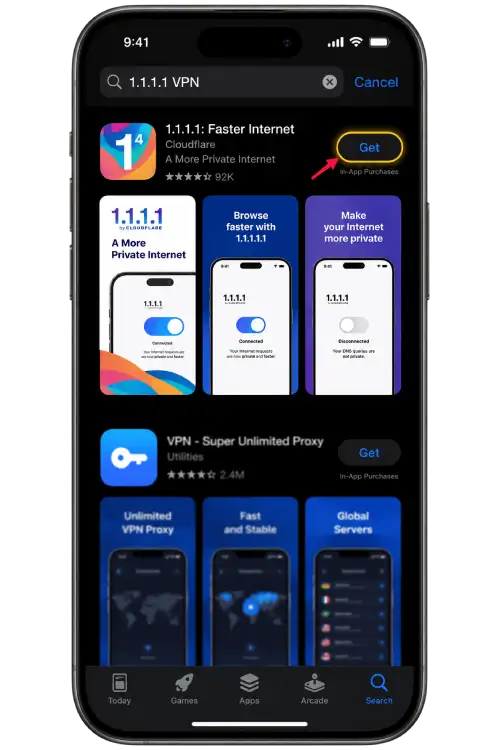
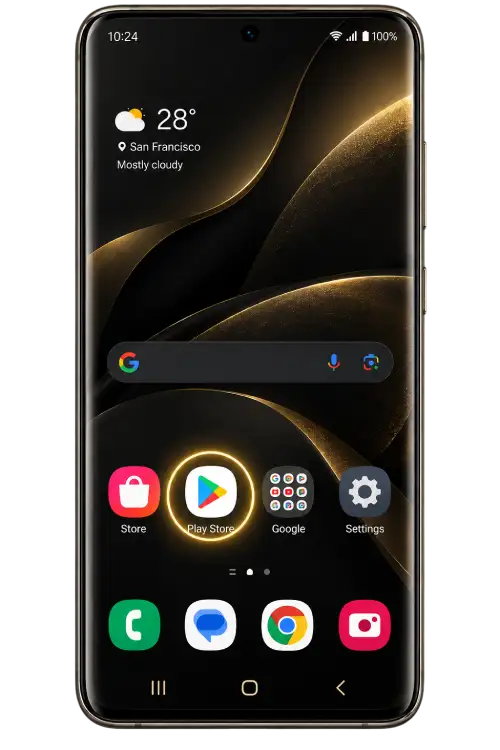
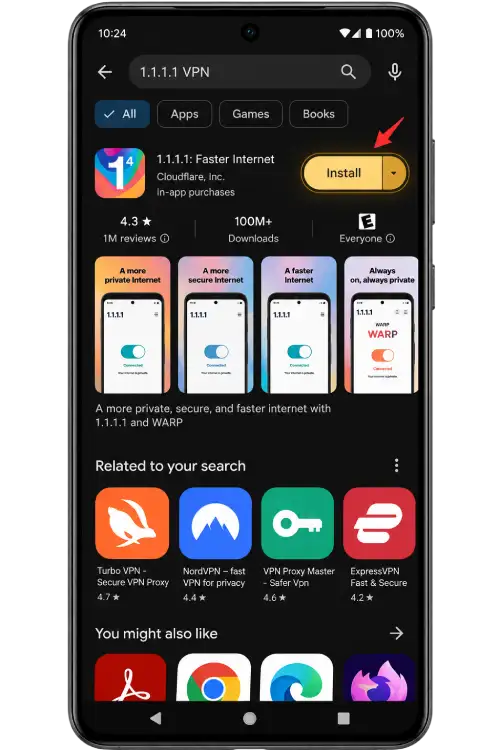
Use the app provider’s download page or the supported store listing for your device. Check the publisher before installing. A familiar name or icon is not enough to identify an application, especially when a file arrives through a forwarded message or an unverified support contact.
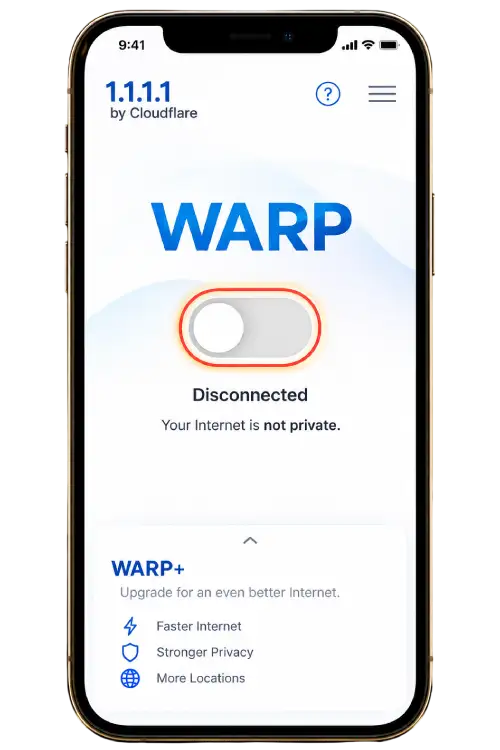
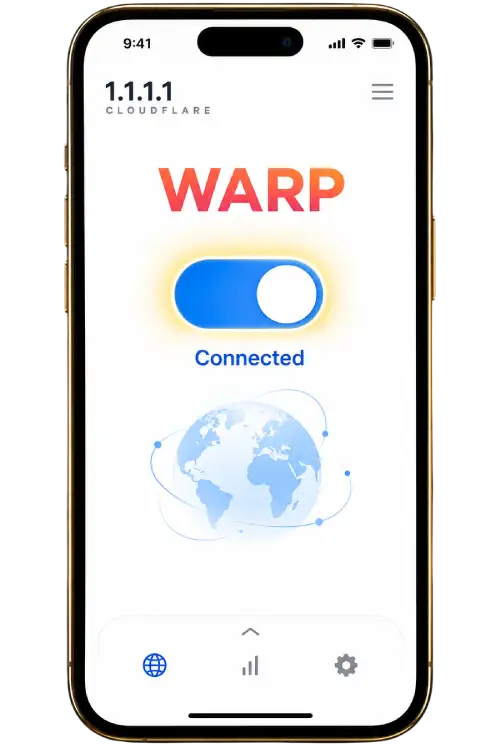
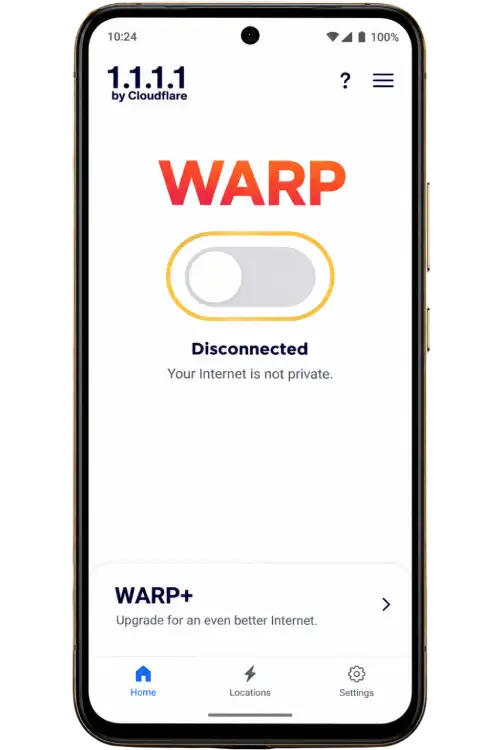
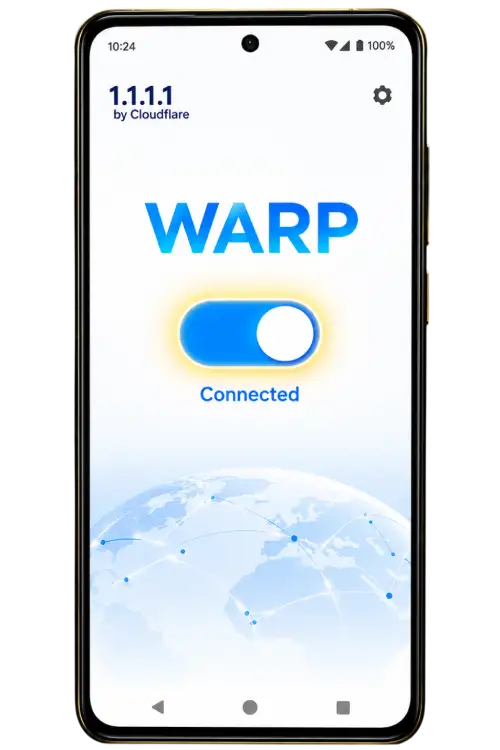
The pictures on this page are intended to accompany the written steps. Store pages, buttons and introductory screens can change. If the current screen differs, review the action being requested instead of approving it simply because a button appears in a similar position. Ask the provider when the supported installation method is unclear.
Understand the VPN permission request
A VPN connection changes how traffic is routed through the device. Read the application’s explanation and the operating system’s request before accepting. Confirm which application is requesting the connection. Do not grant unrelated device-management or accessibility permissions merely to move past an unexplained error.
A network utility does not need your gaming password or an account verification code. Keep those details private. If someone claims they need to sign in to your account to repair a VPN connection, stop and verify the support channel independently. Installation assistance should not require handing over account control.
Check for an existing VPN connection
Review whether another VPN or network-management application is already active. Depending on the device and configuration, existing settings may interfere with a new connection. Follow the relevant provider’s instructions rather than changing several network settings at once.
If the device is managed by an employer, school or another organisation, understand its network requirements before making changes. Do not remove management settings you do not own. Record the original configuration where appropriate so that troubleshooting does not leave you unsure which setting caused a change.
Know what WARP does not establish
WARP does not offer a country selector and does not guarantee access to a particular destination. Enabling a connection does not establish that a service is available to your account or permitted in your location. It also does not verify the identity or licensing of the website you open.
Account eligibility, identity checks and service rules remain separate from network setup. If a provider reports that an account is restricted or ineligible, ask that provider about its process. Do not assume that changing a connection removes an account decision or replaces the need to read the destination’s terms.
Check the connection before retrying a page
After enabling the connection, allow the app time to report its status. If it shows an error or remains in a connecting state, note the message before retrying. Check the provider’s troubleshooting instructions and avoid repeatedly switching settings without observing the result.
Once the device connection is working, open the verified destination again and read its response. A successful connection does not confirm that an earlier login, payment or account request completed. Review account history or contact the provider before repeating a sensitive action whose status remains unclear.
When the app connects but a website still fails
Check whether the problem affects one address or several websites. Confirm the destination and read the browser error. The service may be unavailable, the browser may have an issue or the account may require a separate action. The VPN app reporting a connection does not identify which of those applies.
Keep the route, time, device and error available for support. Do not ignore certificate warnings or install an unrelated package to force a page to open. If the destination’s support confirms an account restriction, follow its review process rather than treating the issue as a network fault.
When the VPN connection does not complete
Check the normal network connection first. Review the app’s permission status and whether another VPN is active. Read the exact error and consult the app provider’s instructions for your device. Avoid changing unrelated settings or deleting network profiles without understanding their purpose.
If the issue continues, report the operating-system version, app version, approximate time and displayed message through a verified support channel. Remove private information from screenshots. Do not send passwords, account verification codes or a complete device backup as part of a basic connection enquiry.
Review connection and battery behaviour
A network app running in the background may interact with the device’s battery, data and background-activity settings. If the connection stops when the screen locks, review the operating system’s relevant settings and the app provider’s guidance. Do not disable every battery or privacy control without knowing which one is involved.
Observe the result after one change at a time. Keep in mind that mobile data use and network availability depend on your connection plan and environment. If you no longer need the connection, use the application’s normal control to stop it rather than leaving settings in a state you do not recognise.
Keep connection setup separate from account recovery
A forgotten password, missing verification code or incorrect account identifier needs the account provider’s recovery process. Installing a VPN does not generate new credentials or prove ownership. Use the login guide to identify the correct next step before making further changes to your device.
If you cannot access the registered phone number or email address, ask the account provider about its alternative verification procedure. Submit identity information only through the secure method it specifies. Banig.net cannot inspect external account records, change registered contacts or approve recovery requests.
Turn off or remove the app deliberately
Use the app’s connection control when you want to stop the VPN. Confirm the status through the application or device settings. If you want to remove the software, follow your operating system’s normal process and review any remaining configuration through the provider’s instructions.
Stopping or removing a VPN is separate from signing out of websites or closing gaming accounts. Review active sessions and account settings independently where needed. Do not assume that deleting a network app cancels a transaction, removes an account restriction or deletes information held by another service.